
As promised in the last blog we are not going to leave Android devices from accessing and getting on our virtual queues. After all Android powered smart phones/tablets are gaining popularity and market share. So without further ado lets get right to it.
Creating the UI
As with the iOS devices, we are going to start by creating our simple UI for Android that mimics the web interface. Here is how the UI will appear on an Android emulator.
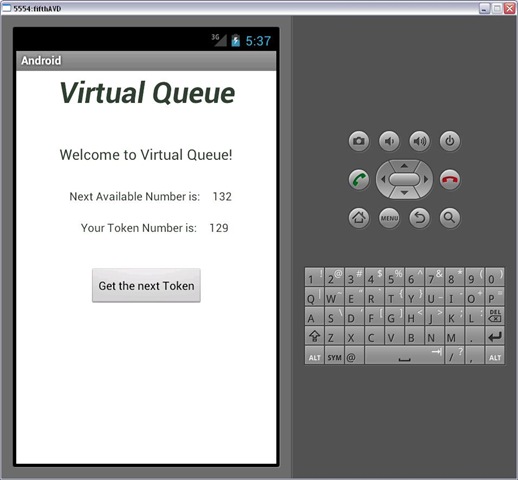
This looks awfully similar to the iOS interface and we have purposely designed it that way. Android UI screen is defined in a layout XML file. By convention (as in Ruby and Lift), the layout XML along with the rest of the resources used in an Android application, resides in a subdirectory of the “res” directory. This fact is important because, the code behind all resource XML is automatically generated. So for example, all the static strings used in the app are defined in strings.xml, colors are defined in colors.xml so on and so forth. The plug ins for Eclipse or intelliJ IDEA automatically generates some Java classes based on the contents of these XML files which we will see in a minute.
So back to the GUI. I was not able to find a UI builder as sophisticated as the iOS Interface Builder but I did use DroidDraw; downloadable from http://DroifDraw.org. This tool provides rudimentary capabilities for laying out the interface for an Android device. In our simple UI we have a few labels and a button. These UI widgets are arranged in a container of sorts that has the ability to arrange its child widgets. A container of widgets can also contain other container widgets. In this case, the container widget being used is a LinearLayout and it spreads its child widgets linearly (we ask it to arrange the widgets vertically by specifying the android:orientation as vertical). The top container is asked to fill the entire screen by defining android:layout_width and android:layout_height to fill the parent using the directive fill_parent. For the top most container this ends up filling the entire screen of the Android device.
The top container has two labels one for the main title “Welcome Queue” and the second for the sub title. These labels are TextView widgets and they are arranged one below the other, they are directed to wrap their contents tightly, show the contents in dark gray color, and are aligned in the center of the parent widget which was the LinearLayout widget.
Below the two title labels are widgets that display the next available token number and the number of the token that the user of this application is currently holding, respectively, These are composed of two LinearLayouts, arranged one below the other and each layout containing two text labels. One being the static text telling the user what the number next to it means and the second label a dynamic string that will be updated based on a user action (the user action could be from the holder of the device, when s/he pushes the button to request the server to dispense a token, or it could be in reaction to some other user of another such device or the web site requesting for a token in which case our Android will display the updated number for the next available token).
Since the two labels (the static text label and the dynamic number label) appear next to each other horizontally, we advise the two LinerLayouts to have an android:orientation as horizontal. The last widget in this UI is a button that is used to request a token from the server.
The layout XML for this GUI looks like this –
[sourcecode language=”XML”]
<?xml version="1.0" encoding="utf-8"?>
<LinearLayout xmlns:android="http://schemas.android.com/apk/res/android"
android:orientation="vertical"
android:layout_width="fill_parent"
android:layout_height="fill_parent"
android:background="@color/white"
>
<TextView
android:id="@+id/widget51"
android:layout_width="wrap_content"
android:layout_height="wrap_content"
android:text="Virtual Queue"
android:textSize="36sp"
android:typeface="sans"
android:textStyle="bold|italic"
android:textColor="@color/darkgray"
android:gravity="center"
android:layout_gravity="center_horizontal"
>
</TextView>
<TextView
android:id="@+id/widget52"
android:layout_width="wrap_content"
android:layout_height="wrap_content"
android:layout_marginTop="40px"
android:text="Welcome to Virtual Queue!"
android:textSize="18sp"
android:textColor="@color/darkgray"
android:gravity="center"
android:layout_gravity="center_horizontal"
>
</TextView>
<LinearLayout
android:id="@+id/widget35"
android:layout_width="fill_parent"
android:layout_height="wrap_content"
android:layout_marginTop="20px"
android:orientation="vertical"
>
<LinearLayout
android:id="@+id/widget41"
android:layout_width="fill_parent"
android:layout_height="wrap_content"
android:layout_marginTop="10px"
android:layout_marginBottom="10px"
android:gravity="center"
android:orientation="horizontal"
>
<TextView
android:id="@+id/widget44"
android:layout_width="wrap_content"
android:layout_height="wrap_content"
android:layout_marginLeft="10px"
android:text="Next Available Number is:"
android:textColor="@color/darkgray"
>
</TextView>
<TextView
android:id="@+id/nextAvailableToken"
android:layout_width="wrap_content"
android:layout_height="wrap_content"
android:layout_marginLeft="15px"
android:text="0"
android:textColor="@color/darkgray"
>
</TextView>
</LinearLayout>
<LinearLayout
android:id="@+id/widget42"
android:layout_width="fill_parent"
android:layout_height="wrap_content"
android:layout_marginTop="10px"
android:layout_marginBottom="10px"
android:gravity="center"
android:orientation="horizontal"
>
<TextView
android:id="@+id/widget46"
android:layout_width="wrap_content"
android:layout_height="wrap_content"
android:layout_marginLeft="20px"
android:text="Your Token Number is:"
android:textColor="@color/darkgray"
>
</TextView>
<TextView
android:id="@+id/myTokenNumber"
android:layout_width="wrap_content"
android:layout_height="wrap_content"
android:layout_marginLeft="15px"
android:text="0"
android:textColor="@color/darkgray"
>
</TextView>
</LinearLayout>
<Button
android:id="@+id/getNextToken"
android:layout_width="wrap_content"
android:layout_height="wrap_content"
android:layout_marginTop="30px"
android:text="Get the next Token"
android:layout_gravity="center_horizontal"
>
</Button>
</LinearLayout>
</LinearLayout>
[/sourcecode]
Generated Class
We alluded to the Generated Java class before when we laid out the GUI for our app as an XML file. The generated code is an important concept in Android apps so let us investigate it little more. The Android plug ins for the IDE used to develop Android apps, be it Eclipse or intelliJ IDEA have the ability to generate the glue code from the resource XML files that we define. By default they generate the code in a R.java class that sits in the root package for your application. So each of the layout xml class will end up in a a generated View class (this happens automatically and a developer does not have to worry about it). The glue code for accessing the widgets of a layout is generated in R.java in the root package. Lets look R.java for a minute:
[sourcecode language=”Java”]
package com.scoovyfoo;
public final class R {
public static final class attr {
}
public static final class color {
public static final int darkgray=0x7f040000;
public static final int white=0x7f040001;
}
public static final class drawable {
public static final int ic_launcher=0x7f020000;
}
public static final class id {
public static final int getNextToken=0x7f070009;
public static final int myTokenNumber=0x7f070008;
public static final int nextAvailableToken=0x7f070005;
public static final int widget35=0x7f070002;
public static final int widget41=0x7f070003;
public static final int widget42=0x7f070006;
public static final int widget44=0x7f070004;
public static final int widget46=0x7f070007;
public static final int widget51=0x7f070000;
public static final int widget52=0x7f070001;
}
public static final class integer {
public static final int next_token_port=0x7f060000;
}
public static final class layout {
public static final int main=0x7f030000;
}
public static final class string {
public static final int app_name=0x7f050000;
public static final int get_token_error=0x7f050001;
public static final int get_token_url=0x7f050004;
public static final int queue_server_dns=0x7f050002;
public static final int queue_server_port=0x7f050003;
}
}
[/sourcecode]
This class contains a lot of static final classes. Each of these static class represents a “type” of resource that will be used in our application. For example, the string class contains constant values for all the strings that are used in the application; except instead of the actual strings, their integer id is stored here. Similarly all the layouts (or pages) that make up our application have an entry in the “layout” type. These “resources” are automatically generated from the XML files that one creates in one of the subdirectories of “res” folder. Again, like most modern frameworks, convention triumphs over customization. So is the case here as well. The directory structure follows a convention where every resource is expected to be in a “res” folder. Inside the res folder there are sub folders for different types of resources; all value resources can be found in the “values” folder, all layouts are in the “layout” folder and so on and so forth.
What gets generated in R.java is an entry for each type of resource with a unique integer id. Each of the key Android framework class provides a mechanism to get to these resources using the static variables in R.java e.g. to use the String “queue_server_dns”, one would invoke getString(R.string.queue_server_dns), similarly a widget can be fetched as findViewById(R.id.nextAvailableToken).
Android Activities
Moving along lets look at how the GUI that we defined in our layout xml is integrated with the application code that implements the core logic of our App. In android platform, a layout screen is backed up by an activity class (akin to the Controller class in iOS). In our case, the Activity class is the GetTokenActivity which extends the Android Activity class.
[sourcecode language=””]
public class GetTokenActivity extends Activity implements TokenListener {
// Tag to be used for Logging messages
private static final String TAG = "GetTokenActivity";
// Handle to the GUI components that we are going to manipulate in this
// class
private TextView mNextAvailableToken; // Label to display the next available token number
private TextView mMyTokenNumber; // Label to display the number of the current token I am holding
[/sourcecode]
In this class we declare the data members that are needed by the application. For example, since we need to update the two labels that show the next available token number and the number of the latest token that we are holding, we declare two class instance members of type TextView. Besides the data members, an activity class has to override certain callback methods that the Android OS will invoke as the application goes through its lifecycle
OnCreate is one such callback method that needs overriding. This is called after Android has finished creating the class. This method is similar to the awakeFromNib method of the iOS Controller class. As in the Controller class where we defined the UI elements of interest in the header file (Controller.h) by annotating them with the macro IBOutlet and IBAction, in Android we have to explicitly bind the UI elements of interest by calling the method findByViewID and passing the ID of the widget that was generated in R.java.
[sourcecode language=”Java”]
/**
* Called when the activity is first created.
*/
@Override
public void onCreate(Bundle savedInstanceState) {
super.onCreate(savedInstanceState);
Log.i(TAG, "Entered OnCreate");
setContentView(R.layout.main);
// Obtain handles to GUI objects
mNextAvailableToken = (TextView) findViewById(R.id.nextAvailableToken);
mMyTokenNumber = (TextView) findViewById(R.id.myTokenNumber);
Button lGetNextToken = (Button) findViewById(R.id.getNextToken);
// Set the callback for the button
lGetNextToken.setOnClickListener(new View.OnClickListener() {
public void onClick(View v) {
getNextToken();
}
});
// Bind to the service that will listen on a socket for the next available token number
Intent intent = new Intent(this, QueueServerSocketConnection.class);
bindService(intent, mConnection, Context.BIND_AUTO_CREATE);
// Now start the service
startService(intent);
}
[/sourcecode]
This method associates the screen layout that this Activity is backing in this case R.layout.main by calling setContentView. Next, it associates the two data members it has with the actual widgets that Android creates in the View class (generated class). It does so by again using the IDs of the widgets defined in R.java and invoking findViewByID method. Once the widgets are located, they would be bound to the respective data members and they will become available from anywhere to use with in the class.
Get Me A Token
The activity class goes on and associates a call back with the only button present in the GUI. The callback method is similar to the one in iOS Controller class and call the getNextToken method which will use the web service exposed by the Queue Server to get the next token. The callback in the case of iOS is registered by using the Interface Builder controls. However in case of Android, we have to explicitly code it by implementing the interface View.OnClickListener and registering our implementation with the button using the setOnClickListener method of the Button class. This takes care of requesting a new token, but what about updating the GUI with the number of the next token.
Update Next Available Token
For updating the next available token, our Queue server offers a Socket. Any interested client can listen on this Socket (which is opened on port 7201). When ever a new token is dispensed to any interested clients all the other clients registered on this socket are notified of the next available token number. The challenge, as it was in the case of the web interface, or the iOS is that we cannot tie our main thread of execution waiting for the next token to arrive on the socket. In case of the web interface we used Comet support in Lift along with the Actor based threading model to achieve not having to engage the main thread. In the case of iOS we created a new class called QueueServerSocketConnection that utilized the CFStream framework and registered the read stream with the main run loop of the program. By registering the CFStream with the main run loop, we avoid blocking the main thread. The CFStream framework allows for us to register a listener which will be called by the run loop as and when events of our interest arrive.
In case of Android we will use a similar approach where by the gory details of connecting to a socket, listening for data on the socket etc. are abstracted in the QueueServerSocketConnection class. However, instead of delegating the actual socket related stuff to something like a CFStream, we will make this class in Android a Service class. As defined in Android documentation, a Service is a component that can perform long running operations in the background and does not provide a user interface. This fits best for our case where we need a component to listen to the socket in the background and does not provide a user interface.
Once a service is created it needs to be started. Also, if a client needs to get some information from the service as the service executes, it needs to bind itself with the service. The last bit of code in the onCreate method does just that. We first bind the Activity with the Service using the bindService method and then start the service using the startService method.
Binding to a Service
In order to bind to a service, we need to provide an implementation of the ServiceConnection interface. This ServiceConnection interface is used by the service class to notify its client once they are connected or disconnected from the service. The Service class passes back an instance of IBinder object that the client can use to hook into the service. In this case the IBinder object is of type QueueServerBinder that allows our Activity class to register a Handler with the Service class.
[sourcecode language=”Java”]
/**
* Defines callbacks for service binding, passed to bindService()
*/
private ServiceConnection mConnection = new ServiceConnection() {
public void onServiceConnected(ComponentName className,
IBinder service) {
Log.i(TAG, "Socket Service Connected");
// We’ve bound to LocalService, cast the IBinder and get LocalService instance
QueueServerSocketConnection.QueueServerBinder binder =
(QueueServerSocketConnection.QueueServerBinder) service;
binder.setHandler(mHandler);
}
public void onServiceDisconnected(ComponentName arg0) {
}
};
[/sourcecode]
So why do we need a Handler class?
Our ultimate goal here is to be able to update the GUI widget to show the next available token number. However, Android puts a hard constraint where a widget can only be updated by a thread that created it. This poses a problem for us because we had to create a new thread to run the QueueServerSocketConnection service in the background to avoid blocking the GUIs main thread. So when the Socket gets the new token it needs to update the TextView that shows the next available token. But since the thread for this socket listener service is not the same as the thread that owns the UI widgets, we will not be able to update the widget.
This is where a Handler class comes to the rescue. As stated in the reference documentation at the Android developer site – A Handler allows you to send and process Message and Runnable objects associated with a thread’s MessageQueue. Each Handler instance is associated with a single thread and that thread’s message queue. When you create a new Handler, it is bound to the thread / message queue of the thread that is creating it — from that point on, it will deliver messages and runnables to that message queue and execute them as they come out of the message queue.
So in a way a Handler class is similar to the Actor model in lift where messages can be passed to the Handler class and it keeps the messages in a queue only to be delivered to the thread that created the Handler class. In our case, we create the Handler class in the same thread that also creates GUI widgets, however as part of binding the activity to our Service class we register the handler object with the Service class. When the Service class receives a token, it will send a message to the Handler object. The Handler class defines a handleMessage method which is executed by the same thread as the one that created the Handler object and the GUI widgets. Using this mechanism, inside the handleMessage method we can modify the UI widget to show the next available token’s number.
[sourcecode language=”Java”]
// Define the Handler that receives messages from the thread and update the nextAvailableToken
private final Handler mHandler = new Handler() {
@Override
public void handleMessage(Message msg) {
Integer token = (Integer) msg.obj;
receiveNewToken(token);
}
};
[/sourcecode]
Requesting a token Using RESTful Web Services
So now we can update the GUI whenever a new token arrives on the socket. The only thing remaining at this point for our Activity class is to use the web service exposed by our server for requesting a token. This is done in the callback for the button click, As with the iOS, we want to invoke this web service asynchronously, so that we do not tie our application waiting for the service to complete. In case of iOS we used the NSURLConnection objects initWithRequest:delegate method in order to invoke the web service asynchronously. We registered the Controller object as the delegate that was called by the connection object as the request was completed.
In case of an Android app, the approach is slightly different. Android platform provides an AsyncTask which allows to perform background tasks and publish results on the UI thread. As mentioned before only the UI thread that owns the widgets is allowed to modify the widgets. An AsyncTask needs to be created on the UI thread. It is started by calling its execute method. Once invoked the AsyncTask runs the background operation in a separate thread. As he task progresses, it invokes callback methods on the UI thread which will then update the widgets accordingly.
AsyncTask is a parameterized class and it is defined by 3 types called Params, Progress and Results and 4 steps, onPreExecute, doInBackground, onProgressUpdate and onPostExecute. The doInBackground method is invoked in a separate thread.
In our case we are interested only in doInBackground and onPostExecute where we make the web services call inside the doInBackground method and update the TextView widget in the onPostExecute method.
Here is the code for this class which is declared as a private class inside the GetTokenActivity class.
[sourcecode language=”Java”]
private class GetMeAToken extends AsyncTask {
private final HttpClient client = new DefaultHttpClient();
private String token;
private boolean error = false;
protected void onPreExecute() {
}
protected String doInBackground(String… urls) {
try {
HttpGet httpget = new HttpGet(urls[0]);
ResponseHandler responseHandler = new BasicResponseHandler();
JSONObject jsonResponse = new JSONObject(client.execute(httpget, responseHandler));
token = jsonResponse.getString("number");
} catch (IOException e) {
Log.d(TAG,"IOException while getting json response",e);
error = true;
cancel(true);
} catch (JSONException e) {
Log.d(TAG,"JSONException while getting json response",e);
error = true;
cancel(true);
}
return token;
}
protected void onPostExecute(String token) {
if (error) {
Toast toast = Toast.makeText(GetTokenActivity.this, getString(R.string.get_token_error), Toast.LENGTH_LONG);
toast.setGravity(Gravity.TOP, 0, 75);
toast.show();
} else {
GetTokenActivity.this.displayToken(token);
}
}
}
[/sourcecode]
As you can see inside the doInBackground task we use the HttpClient to invoke the JSON web service. The response is then parsed as a JSONObect and we extract the token out of the JSON response. When doInBackground returns, the onPostExecute is invoked on the UI thread, The result is passed to this method which will update the myTokenNumber TextView.
This brings us to the end of everything that is interesting about the GetTokenActivity. Next we will consider the only Service we had to create in order to have our app listen on the Socket for the token number of the next available token.
Socket Connection to the Server for Live Updates – using Android Services
As mentioned earlier the live update of next available token is possible only because our queue server publishes that number on an open Socket. As was the case of iOS, we will accomplish the task of listening on this socket, waiting to hear about the next token and then notifying the GetTokenActivity to a class called QueueServerSocketConnection. Let us look at the code for this class’
[sourcecode language=”Java”]
public class QueueServerSocketConnection extends IntentService {
// Logging
private static final String TAG = "QueueServerSocketConnection";
private static final int SOCKET_TIMEOUT = 500000;
// Binder given to clients
private final IBinder mBinder = new QueueServerBinder();
// TokenListener
private Handler mHandler = null;
private Socket mSocket = null;
private DataInputStream mDataInputStream = null;
[/sourcecode]
The QueueServerSocketConnection is a specialized IntentService class that runs its service in a background worker thread separate from the main UI thread and is ideal in our case where we do not have a need to execute multiple tasks simultaneously. All that is required of the IntentService is to provide an implementation for the onHandleEvent method like this –
[sourcecode language=”Java”]
@Override
protected void onHandleIntent(Intent intent) {
Log.d(TAG, "Inside onHandleIntent");
do {
try {
Integer tokenNum = mDataInputStream.readInt();
Log.d(TAG, "Got a new token " + tokenNum);
if (mHandler != null) {
Log.d(TAG, "Sending token to handler " + tokenNum);
Message msg = mHandler.obtainMessage();
msg.obj = tokenNum;
mHandler.sendMessage(msg);
}
} catch (IOException e) {
e.printStackTrace(); //To change body of catch statement use File | Settings | File Templates.
throw new RuntimeException(e);
}
} while (true);
}
[/sourcecode]
This method is invoked on the worker thread with a request to process. It takes an Intent as an argument which is nothing but an abstract description of an operation to be performed. Only one Intent is processed at a time, but the processing happens on a worker thread that runs independently from other application logic. So, if this code takes a long time, it will hold up other requests to the same IntentService, but it will not hold up anything else. When all requests have been handled, the IntentService stops itself.
It is in this method that we create an infinite loop which will just sit and listen on the input data stream of the Socket waiting for an integer to arrive. When it gets an integer, it reads the number and it will use the message Handler that was registered by the GetTokenActivity class as described earlier to inform the client of this service of the next available token number. We will visit binding to a service once again to explain what a Service needs to do in order to allow a client to bind to it. For now lets concentrate on the Handler mechanism for communicating the next token number. We explained earlier that a Handler class allows you to send a Message. And that is exactly this method will accomplish. It will obtain the Message object from the Handler class and use that object for setting the token number. The sendMessage method will be used to then send the Message to the Activity class and will arrive on the queue of the thread that created this Handler object. Eventually, the handleMessage method of the Handler class is invoked but on the thread that created the Handler object.
Binding to a Service – Revisited
Earlier we saw binding to a Service from a Client’s perspective, now lets see what a Service needs to provide in order to let a client connect to it.
The first thing a Service needs to provide is an implementation for the IBinder interface. An IBinder is what is passed to the client when a connection to a service is established. In our case we create a QueueServerBinder class and all it needs to do is extend an abstract Binder class and provide a method that will be used by this Service’s client to register a Handler object with the Service. The Handler will be used later by the Service class to communicate the next available token number with the Client.
[sourcecode language=”Java”]
/**
* Class used for the client Binder. Because we know this service always
* runs in the same process as its clients, we don’t need to deal with IPC.
*/
public class QueueServerBinder extends Binder {
public void setHandler(Handler aHandler) {
Log.d(TAG, "Binding handler");
QueueServerSocketConnection.this.mHandler = aHandler;
}
}
@Override
public IBinder onBind(Intent intent) {
return mBinder;
}
[/sourcecode]
The onBind method is invoked when the client calls the bindService method. As part of the bindService, the client provides a ServiceConnection object. Once this Service is connected with the Client, the onServiceConnected method of the ServiceConnection class is invoked and the IBinder is passed to the ServiceConnection object which will then use the Binder to register the Handler class.
The only interesting thing remaining in this class is the onCreate method which is where the Socket connection is established and the data stream is opened.
[sourcecode language=”Java”]
@Override
public void onCreate() {
Log.i(TAG, "inside onCreate – Creating Socket");
super.onCreate();
if (mSocket == null || mSocket.isClosed()) {
try {
//mSocket = new Socket(InetAddress.getByName("localhost"), 7201);
mSocket = new Socket();
Log.d(TAG, "Opening client socket – ");
mSocket.bind(null);
mSocket.connect((new InetSocketAddress(getString(R.string.queue_server_dns),
getResources().getInteger(R.integer.next_token_port))), SOCKET_TIMEOUT);
Log.d(TAG, "Client socket – " + mSocket.isConnected());
assert mSocket != null;
mDataInputStream = new DataInputStream(mSocket.getInputStream());
Log.i(TAG, "Socket Created, Stream Opened");
} catch (UnknownHostException e) {
e.printStackTrace(); //To change body of catch statement use File | Settings | File Templates.
} catch (IOException e) {
e.printStackTrace(); //To change body of catch statement use File | Settings | File Templates.
}
}
}
[/sourcecode]
Conclusion
So there we have it, with this we can get to our virtual queue through a web interface, an iOS app and an Android app. Next we will create an actual queue and see how to make the queue discoverable.